How PlanMate's Selfie Verification Process Works
Follow PlanMate's selfie submission and review workflow, understand pending and approved status, and prepare a clear photo without oversharing.
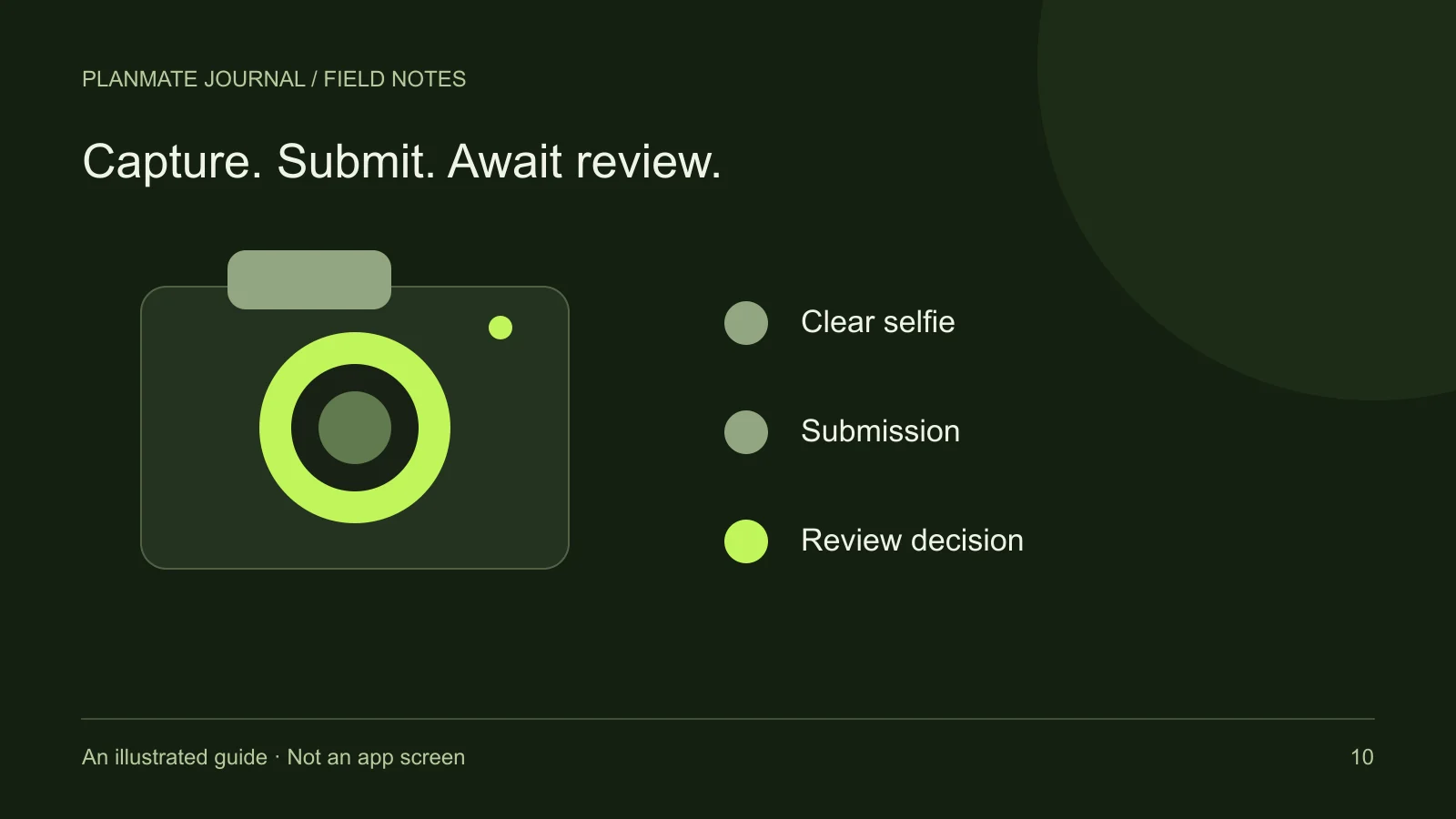
A successful selfie upload means the app received a submission; it does not mean the review approved it. PlanMate separates capture, submission and a review decision, and its verification screen shows the state that applies to your account.
Before you begin, find a well-lit place with a simple background and use the verification entry point in the app. The steps below explain preparation, status labels and the options available when a submission needs attention.
Find the profile verification entry point
The app's settings experience includes Profile Verification, and onboarding also offers an optional verification step. Use the entry point in your current app rather than sending a selfie to a host, a chat participant, or someone claiming to offer faster approval.
Before starting, make sure you are signed in to the account you intend to verify. If the screen already shows an approved state or a pending request, read that status before trying to create another submission. The available actions depend on the account's current verification state.
Verification is distinct from editing your profile photo. A public avatar helps other people recognize your profile; verification evidence is submitted for the review process. Replacing your avatar should not be assumed to submit a new verification request or change a review decision.
Prepare a clear, ordinary selfie
Choose a place with enough light for your face to be visible. Avoid a strong light source behind you, heavy shadows, or a frame containing several people. Remove anything that obscures the face if you can do so comfortably and consistently with the instructions shown in the app.
Keep the background simple. There is no benefit to including a document, an address, a work badge, or a screen showing account information. The objective is to follow the selfie instructions, not to provide extra sensitive material that the process has not requested.
Use the camera permission prompt thoughtfully. If access is denied, review the device's permission controls and return to the supported flow. Do not interpret a permission problem as a rejected verification request; those are separate stages with different causes.
Follow the capture instructions and review the image
The verification experience includes an interactive capture flow. Follow the prompts presented on your device, and pause if the camera view or instructions are unclear. The app can collect information associated with that step, but completing it is still preparation for review rather than final approval.
Review the resulting selfie before submitting. Check that the image is clear, your face is visible, and another person has not entered the frame. If the app offers a retake, use it when the photo does not match the instructions. A deliberate retake is more useful than submitting an obviously unsuitable image and hoping it will be enough.
Do not assume a dramatic pose, a filter, or a higher-resolution file improves the review. Follow the actual guidance. The purpose is a clear submission through the supported process, not a professionally edited portrait.
Submit through the app and confirm the status
After you submit, look for the result in the verification screen. If the app reports an upload or submission problem, do not assume the review team has received the evidence. Follow the error guidance and check the current state before trying again.
A pending status means the request is under review. It is not approval and should not be described to other members as a completed verification. The app's workflow reserves the final review decision for authorized review rather than treating the camera step as sufficient.
No fixed review time is promised here. If you need assistance, use PlanMate support rather than paying someone who claims they can accelerate the process. Never share a password or one-time code as part of a supposed verification shortcut.
Understand the possible states
The process distinguishes not submitted, pending, approved, rejected, and cancelled states. Read the wording in your account rather than inferring the status from an old notification or a profile image. The current verification screen is the place to check what actions are available.
- Not submitted: there is no completed submission awaiting review through this state.
- Pending: a request has been submitted and a review decision has not yet approved it.
- Approved: the review has approved the verification state, which can be reflected by the badge.
- Rejected: the request did not meet the review requirements; available guidance may explain what needs attention.
- Cancelled: the request was cancelled; follow the screen's offered next steps if you want to try again.
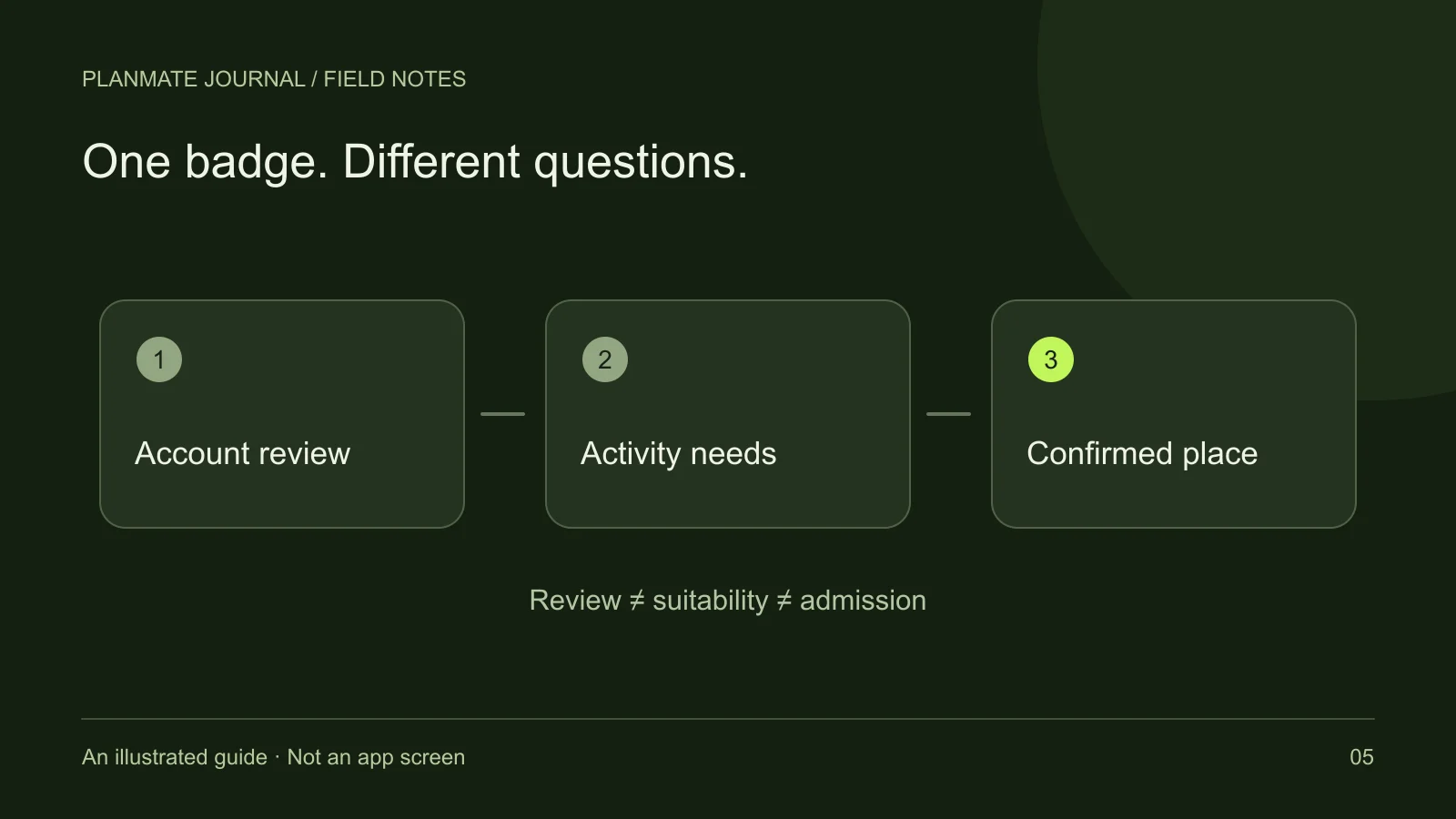
These labels concern the verification workflow. They do not describe whether you have been accepted into a particular activity, whether a payment succeeded, or whether you checked in. Those questions belong to participation and booking, not profile review.
If you need to cancel or resubmit
A pending request can expose a cancellation option when the account is eligible. Read the confirmation carefully. Cancelling verification is not the same as deleting your account, removing your avatar, or leaving an activity.
If a rejected request allows resubmission, use the reason or guidance provided. A clearer image or a different capture attempt may address a submission issue, but no outcome is guaranteed. Do not repeatedly send the same unsuitable image without considering the feedback.
If the status seems inconsistent, contact support with a concise description of what the screen shows and what happened. Share only the information needed to investigate. Do not post your private verification evidence in a public discussion to ask other members to evaluate it.
Know what an approved badge does not promise
Approval is a result of PlanMate's profile-review workflow. It is not a background check, a government-ID certification, proof of professional skill, or a guarantee of good behavior. Other members should still read activity details and make their own decisions about meeting.
Likewise, a badge does not automatically reserve a place or replace a host's acceptance. A verified profile can have a pending join request, and a confirmed participant can still need to complete attendance check-in. Read verification and meetup eligibility to keep those stages distinct.
For the broader account experience, see profile and account settings. Verification is one optional part of a useful profile—not a reason to overshare, ignore boundaries, or promise more trust than a specific review process can establish.